Tech Setup
Installing R and RStudio
You’re strongly encouraged to install R & RStudio on the laptop that you plan to bring to class.
Follow these steps in the given order. (For those that already have R and RStudio: if your versions are more than 6 months old, they might not be compatible with the course material. You might either update now or on the fly, if necessary.)
First we’ll install R. See the big “1 : Install R”?
Click “Download and Install R”.
Click the appropriate “Download R for…” link, depending upon your operating system (e.g. Windows, macOS, Linux). Then follow the instructions there to download R.
Return to the RSTudio Desktop page. See the big “2 : Install RStudio”?
Choose the right version for your computer:
macOS: you may need to figure out what version of macOS you are using: Click the apple icon in the upper left corner → About This Mac → Info → macOS.
Here’s a screenshot:
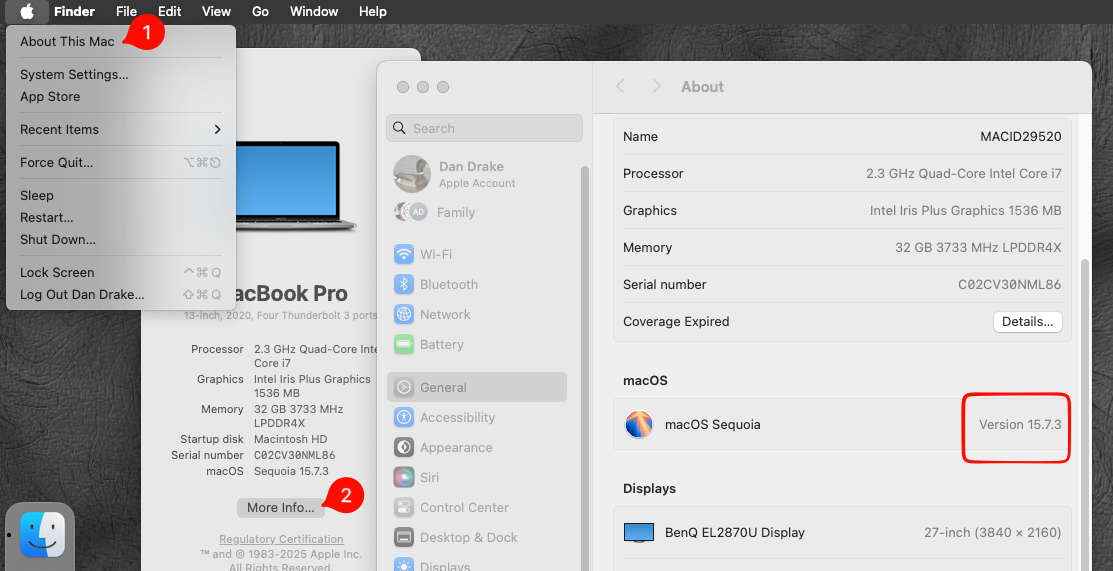
Once you download the
dmgfile and click on it, drag the RStudio icon to Applications. Then open Finder and click the eject icon next to the RStudio temporary drive under Locations.
Windows: there’s only one version; just download and install that.
⚠️ Warning! If you have a Windows computer that uses an ARM CPU, you cannot use it for this course. (As of spring 2026, at least.) It mostly works, but not well enough for you to do the activities in our course.
How do I tell if I have one of those? If you have a Surface model, those have an ARM CPU and you won’t be able to use it. Otherwise, you almost certainly have a Windows computer that will work. If you want to be super certain, follow these instructions.
Alternatively, if you don’t plan to use RStudio after this course or are having trouble installing the software, you can use Mac’s RStudio server at rstudio.macalester.edu.
Other setup
Change the default file download location for your internet browser
- Why? Generally by default, internet browsers automatically save all files to the
Downloadsfolder on your computer. This does not encourage good file organization practices. You need to change this option so that your browser asks you where to save each file before downloading it. - How? This page has information on how to do this for the most common browsers.
Create a folder for this course
- Possible folder names
DS112,COMP112,STAT112,IntroDS - Suggested locations for this folder:
- If using RStudio desktop: On your
Desktopor in yourDocumentsfolder. (If you already have a file system set up for your classes, feel free to keep using it.) - If using Mac’s RStudio server: In the Home folder that is open by default. (You’ll see the Files pane open on the bottom left.)
- If using RStudio desktop: On your
- Within the folder for this course, create 3 subfolders:
activitieshomeworkproject